Portable monitors for travel work: when a second screen earns its space
Choose a travel monitor by real connection needs, desk fit, power and the tasks you perform away from home.
Research-led guidance based on published information and practical selection criteria. We have not performed hands-on testing of the products discussed.
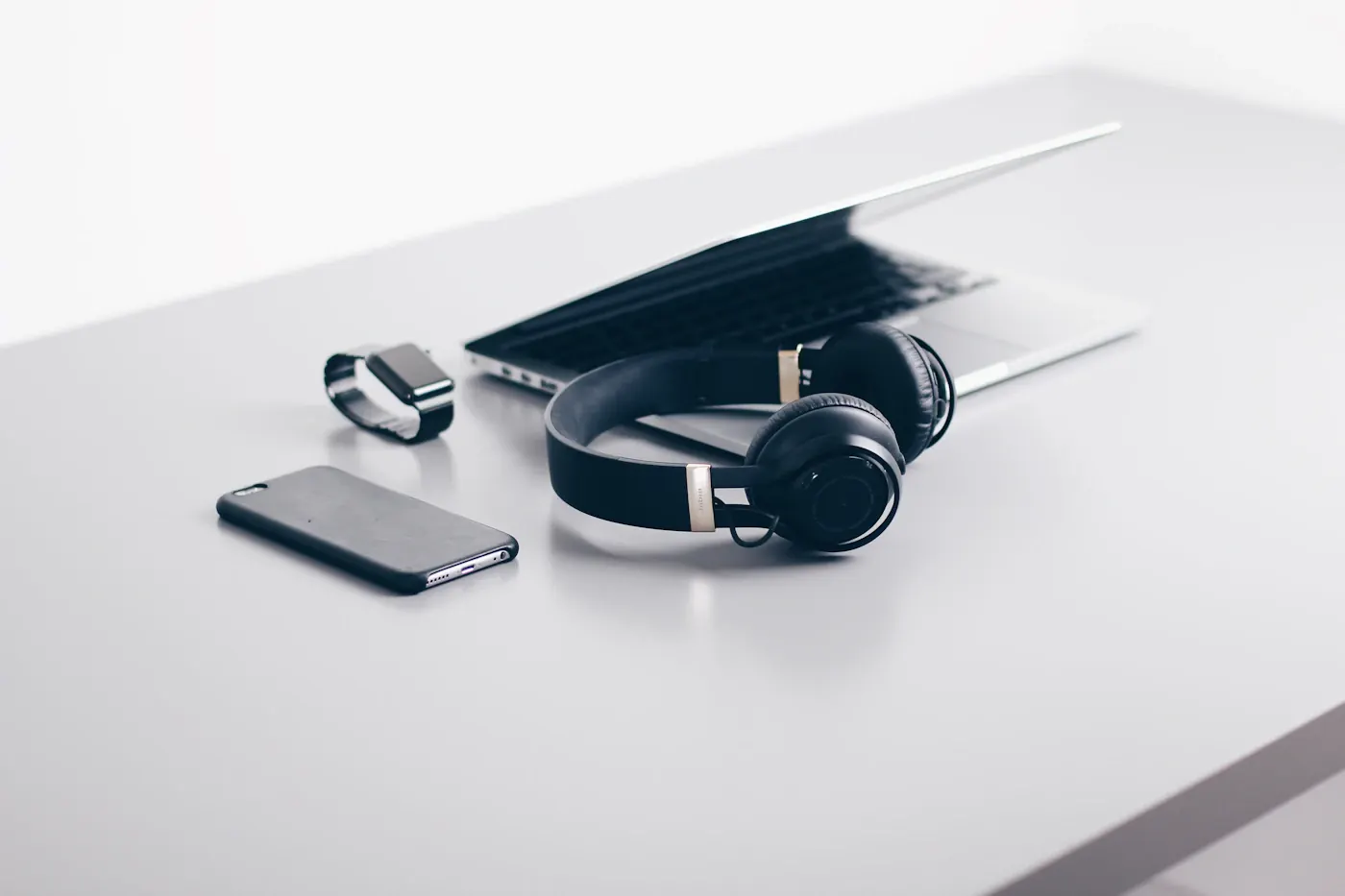
You work from a hotel for two afternoons, comparing a document with a video meeting or moving between a spreadsheet and email. A portable monitor looks like an easy productivity upgrade. But the hotel desk is small, the laptop has unfamiliar port limitations, and the monitor needs a safe place in a crowded bag. Those details determine whether it helps.
Short verdict
A portable monitor is useful when repeated side-by-side work justifies the extra screen, cables, power demands, and luggage space. Confirm video support from the laptop’s exact port before choosing a USB-C model. For occasional email and short trips, a well-organized single display may remain the better option.
Compare the working situations
| Working situation | Helpful priority | What to watch |
|---|---|---|
| Spreadsheet plus reference document | Readable resolution and usable size | Desk depth and text scaling |
| Frequent hotel work | Stable stand and simple cabling | Available power outlets |
| Meetings while taking notes | Flexible screen placement | Camera angle and privacy |
| Travel gaming as a secondary use | Documented refresh and console support | Power and connection complexity |
A USB-C connector does not by itself promise display output. USB-IF documentation explains the connector ecosystem, while your laptop manufacturer identifies which features each port supports. Read the laptop’s exact model documentation, not merely a family name or the appearance of its sockets.
Some monitors carry video and power over a suitable single connection. Others need separate power or offer additional inputs. Check the entire route from laptop to monitor, including cable requirements, adapters, and whether the laptop can supply adequate power in the intended mode.
Avoid the hotel-room surprise
Connect the screen at home using the same laptop and cables you will pack. Test extended desktop mode, sleep and wake behavior, and use while the laptop is charging. Microsoft’s documentation explains how Windows handles multiple displays, including arrangement and identification.
If the laptop has few ports, decide what else must connect simultaneously. A charger, storage drive, wired headset, or other device may create a need for a dock. Docks introduce additional compatibility and bandwidth questions, so a portable display that seems simple can become a small equipment system.
Consider working on battery power. The second screen adds power demand, and a laptop’s runtime claims do not automatically include it. When reliable power is unavailable, prioritize the tasks that genuinely need a second screen rather than leaving it attached throughout the day.
Make the screen comfortable
Measure the available working surface in familiar travel settings if possible. A fold-out cover stand can be convenient, but its adjustment range and stability matter. A narrow hotel desk may not accommodate the laptop, screen, and notes comfortably.
Text clarity and scaling are important for document work. More pixels do not guarantee comfortably readable text on a small panel. Consider operating-system scaling and how applications respond when windows move between screens with different sizes or pixel densities.
Glare and brightness also affect usability, particularly near windows. Compare credible evaluations and official specifications without assuming that a portable screen is suitable for outdoor work. A privacy filter may help in shared spaces if compatible, but it can change viewing characteristics and adds another accessory to carry.
Purchase in a sensible order
First establish the supported connection and power arrangement. Next choose size, resolution, and a stand that fit your real desk. Then compare weight including the case and cables, warranty support, and protection for transport. Touch capability and high refresh rates are extras unless your actual work requires them.
If the monitor will also serve as a travel gaming screen, verify the console or handheld’s video output, power requirements, and display modes. A screen marketed for laptops is not automatically compatible with every gaming device. Our gaming monitor guide explains how frame rate and refresh rate differ.
Carry the monitor in a protective compartment that does not press hard objects against the panel. Avoid treating a thin cover as proof that the screen can survive any luggage handling. Repair costs and portability need to be considered together.
Who should skip it?
Do not buy one simply because a two-screen office setup feels familiar. If trips are brief, desks are unpredictable, or your tasks fit one screen well, the extra equipment may slow you down. People who mainly work from home may get more value from a conventional adjustable monitor.
FAQ
Will any USB-C laptop run a portable monitor?
No. Check documented video output and power support for the exact port and cable arrangement.
Can I run it without a wall outlet?
Possibly, depending on the laptop and monitor. Confirm the supported power path and test your actual workflow before travel.
Is a touchscreen necessary?
Only if your applications and operating system make useful use of it. For ordinary documents and spreadsheets, ergonomics and readable text usually deserve attention first.
Sources & further reading
Consult these official resources for technical details and compatibility. Product availability, specifications, and terms can change; verify the exact model before buying.
Spotted an error? Send a correction to Smartvora.